> ## Documentation Index
> Fetch the complete documentation index at: https://docs.tournamentsystem.xyz/llms.txt
> Use this file to discover all available pages before exploring further.
# Set up OBS
> Download the scene collection, import it into OBS, and connect audio and game capture with the Preflight Checklist.
Do this once on each broadcast PC before you first go live. The scene collection, downloaded from **OBS Setup** and imported into OBS, holds a Preflight Checklist scene for connecting audio and game capture, and the eight broadcast scenes: Starting Soon, Caster Chat, Game Intro, In-Game, Intermission, Result, Stand By and End Stream.
## Before you start
* Install OBS on the broadcast PC.
* Open the Spotify app, the Discord app and the game on the broadcast PC, so you can select their windows in OBS.
* You need access to download the scene collection. Without it, the button on **OBS Setup** reads **Download unavailable**. See [How access works](/get-started/access).
## Import the scene collection
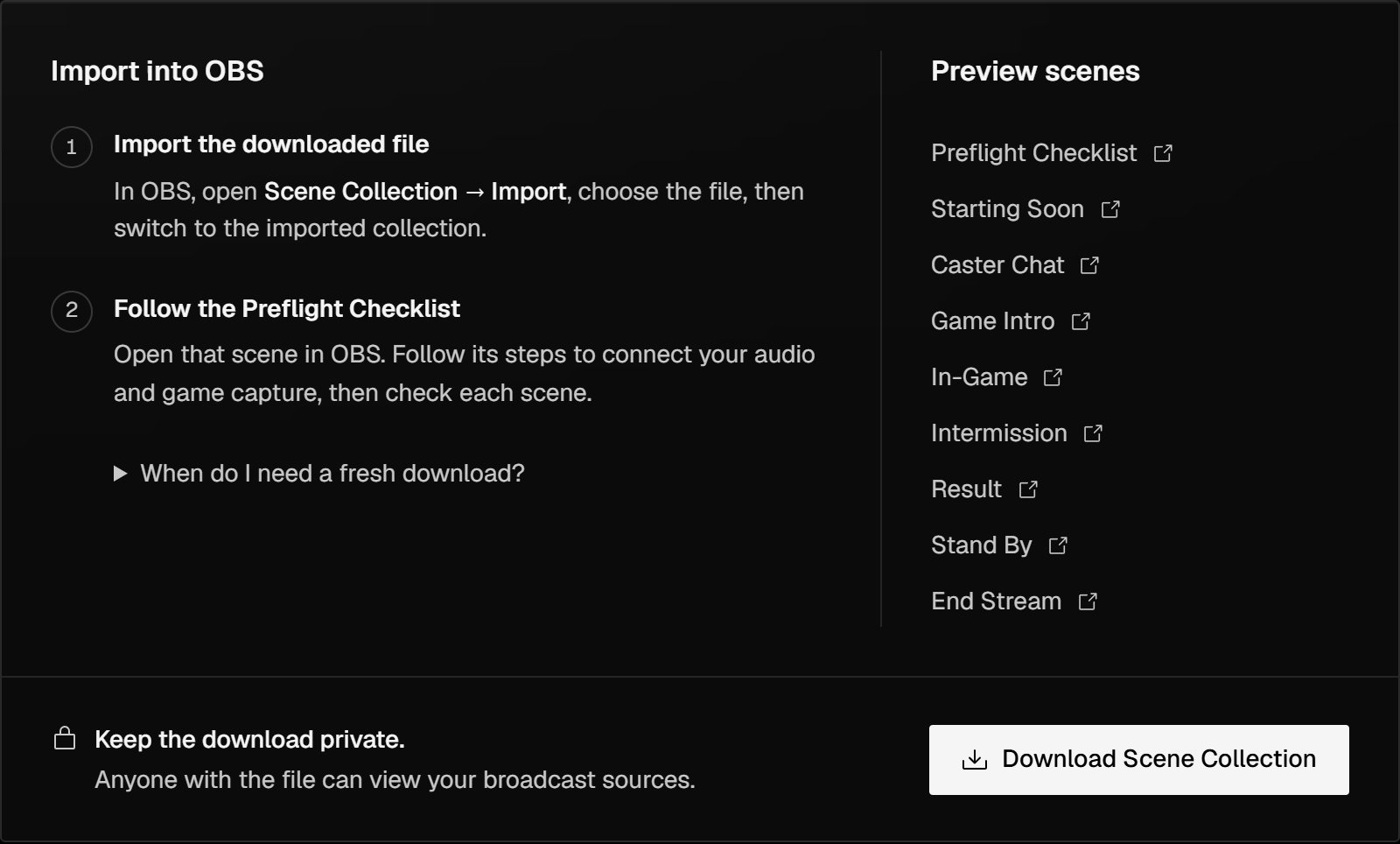 In the staff console sidebar, select **Broadcast** → **OBS Setup**, then **Download Scene Collection**. Save the file on the broadcast PC.
In OBS, select **Scene Collection** → **Import**, choose the file, then switch to the imported collection.
OBS now lists the Preflight Checklist scene and the eight broadcast scenes.
Select the **Preflight Checklist** scene. It greets you by name and lists four steps. For each source it names, double-click the source in OBS to open its **Properties**.
Open the **Spotify Audio** source and select the Spotify window. It plays on Starting Soon, Intermission and End Stream.
Open the **Discord Audio** source and select the Discord window. It plays on Caster Chat, Game Intro, In-Game, Result and Stand By.
Open the **DBD Game Capture** source and select the game's window. It shows on In-Game.
Switch through each scene and check the picture and audio levels.
When everything works, delete the Preflight Checklist scene. The broadcast scenes don't need it.
## Preview the scenes in a browser
**Preview scenes** on **OBS Setup** opens each scene in a new browser tab, without OBS. Without access to download the scene collection, only the Preflight Checklist opens.
## When to download again
Scenes update on their own when staff change a scene's details or score a match in Live. Download and import again only when new scenes are added, or when your organisers ask you to.
A scene already open in OBS keeps the version it loaded. If a scene looks out of date after a Tournament System update, refresh that browser source in OBS or restart OBS.
## Next steps
Score each match on the night. The scenes follow the score.
Add the stream and its matches before the night.
## Related topics
- [Run a stream](/broadcast/broadcast-night.md)
- [How a season runs](/get-started/how-a-season-runs.md)
- [Control the scenes](/broadcast/control-scenes.md)
- [Score a match in Live](/broadcast/score-a-match.md)
- [Glossary](/get-started/glossary.md)
This documentation is built and hosted on [Mintlify](https://mintlify.com), a developer documentation platform.
In the staff console sidebar, select **Broadcast** → **OBS Setup**, then **Download Scene Collection**. Save the file on the broadcast PC.
In OBS, select **Scene Collection** → **Import**, choose the file, then switch to the imported collection.
OBS now lists the Preflight Checklist scene and the eight broadcast scenes.
Select the **Preflight Checklist** scene. It greets you by name and lists four steps. For each source it names, double-click the source in OBS to open its **Properties**.
Open the **Spotify Audio** source and select the Spotify window. It plays on Starting Soon, Intermission and End Stream.
Open the **Discord Audio** source and select the Discord window. It plays on Caster Chat, Game Intro, In-Game, Result and Stand By.
Open the **DBD Game Capture** source and select the game's window. It shows on In-Game.
Switch through each scene and check the picture and audio levels.
When everything works, delete the Preflight Checklist scene. The broadcast scenes don't need it.
## Preview the scenes in a browser
**Preview scenes** on **OBS Setup** opens each scene in a new browser tab, without OBS. Without access to download the scene collection, only the Preflight Checklist opens.
## When to download again
Scenes update on their own when staff change a scene's details or score a match in Live. Download and import again only when new scenes are added, or when your organisers ask you to.
A scene already open in OBS keeps the version it loaded. If a scene looks out of date after a Tournament System update, refresh that browser source in OBS or restart OBS.
## Next steps
Score each match on the night. The scenes follow the score.
Add the stream and its matches before the night.
## Related topics
- [Run a stream](/broadcast/broadcast-night.md)
- [How a season runs](/get-started/how-a-season-runs.md)
- [Control the scenes](/broadcast/control-scenes.md)
- [Score a match in Live](/broadcast/score-a-match.md)
- [Glossary](/get-started/glossary.md)
This documentation is built and hosted on [Mintlify](https://mintlify.com), a developer documentation platform.