> ## Documentation Index
> Fetch the complete documentation index at: https://docs.tournamentsystem.xyz/llms.txt
> Use this file to discover all available pages before exploring further.
# Score a match in Live
> Choose the stream, start a scorecard from a scheduled match, score it as it's played, and save the winner.
Score a match in Live as it's played. The scenes in OBS show each change. MelCat Interactive built live scoring for Dead by Daylight.
* **Stream**: one broadcast night and its matches. Staff set up streams on Schedule, and Live works in one stream at a time.
* **Scorecard**: one match while you score it, from **Create Scorecard** to **Finish Scorecard**. Only one can be open at a time.
## Before you start
* You need access to operate Live. See [How access works](/get-started/access).
* Add the stream and its matches on Schedule. You can score a match only when it's in the stream, has both teams set and has no result yet. See [Plan the schedule](/season/schedule).
* Set up OBS on the broadcast PC. See [Set up OBS](/broadcast/set-up-obs).
## Score a match
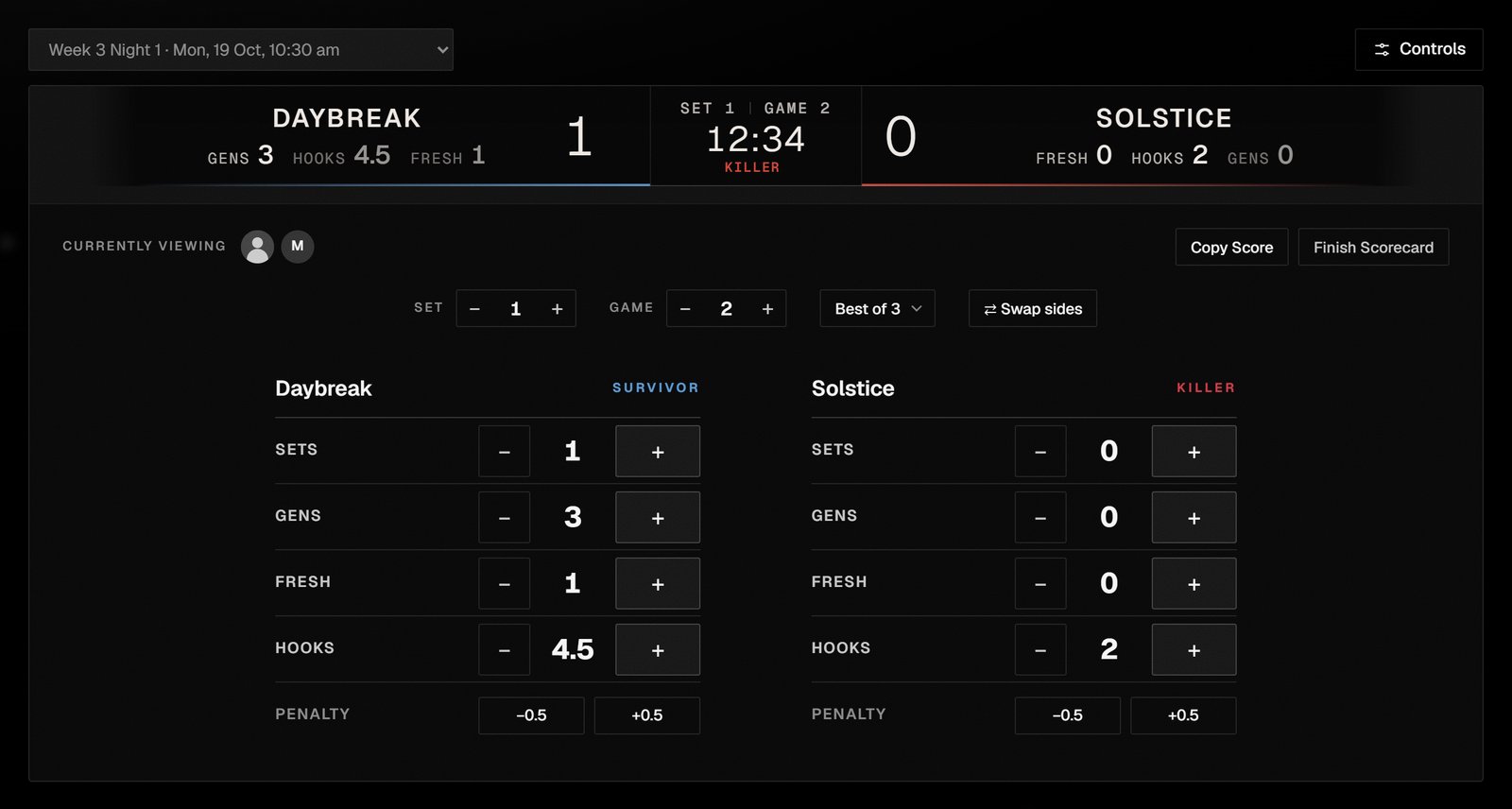 In the sidebar, select **Broadcast** → **Live**, and choose the stream from the list at the top.
The choice applies to everyone using Live and to the scenes. It's locked while a scorecard is open.
Choose the match from **Match**, which lists only this stream's matches that are ready to start, then select **Create Scorecard**.
The scorecard takes its teams and **Best of** from the match.
Each team shows its side for the current game: killer or survivor. If they're the wrong way round, select **⇄ Swap sides**.
As the teams play, select **+** or **−** on each team's **Gens**, **Fresh** and **Hooks**. **Penalty** takes half a hook off with **−0.5** and gives it back with **+0.5**.
These are totals for the whole match. Moving to the next game or set doesn't reset them.
Select **+** beside **Game**. The teams swap sides automatically.
When a team wins a set, select **+** on its **Sets**, then **+** beside **Set** to start the next one. Changing **Set** doesn't change **Game** or the sides: **Game** keeps counting through the match.
When the match is over, select **Finish Scorecard**, choose the winning team under **Who won?**, and select **Finish**.
Live saves the winner on the match in the schedule, and "Finished. The winner is on the schedule." confirms it. In-Game shows nothing until you start the next scorecard.
**Finish** can't be undone. The Tournament System doesn't work out the winner from the scores: the team you choose under **Who won?** is the result. If you choose the wrong team, correct it on Schedule.
## Share the score
Select **Copy Score** at any time to copy the current score, formatted for Discord. "Score copied for Discord" confirms it.
## Fix a mistake
* **A wrong figure.** Select **−**. Whole steps stop at zero.
* **The wrong game or set.** Select **−** beside **Game** or **Set**. Stepping the game back also swaps the sides back.
* **The wrong format.** Choose another **Best of** on the scorecard. When you finish, the match on the schedule takes the scorecard's **Best of**.
## Work with other operators
When someone else has Live open, their picture appears beside **Currently viewing**. Their changes reach your scorecard within a few seconds. If you both change the game at the same moment, Live refuses the second change with "The game changed in another Live view. Review it and try again."
If your access lets you change the scenes, **Controls** beside the stream list opens the scene controls next to the scorecard.
## Next steps
Add streams and matches, and correct a result.
Get a broadcast PC ready for the scenes.
## Related topics
- [Run a stream](/broadcast/broadcast-night.md)
- [Control the scenes](/broadcast/control-scenes.md)
- [Set up OBS](/broadcast/set-up-obs.md)
- [How a season runs](/get-started/how-a-season-runs.md)
- [Plan the schedule](/season/schedule.md)
This documentation is built and hosted on [Mintlify](https://mintlify.com), a developer documentation platform.
In the sidebar, select **Broadcast** → **Live**, and choose the stream from the list at the top.
The choice applies to everyone using Live and to the scenes. It's locked while a scorecard is open.
Choose the match from **Match**, which lists only this stream's matches that are ready to start, then select **Create Scorecard**.
The scorecard takes its teams and **Best of** from the match.
Each team shows its side for the current game: killer or survivor. If they're the wrong way round, select **⇄ Swap sides**.
As the teams play, select **+** or **−** on each team's **Gens**, **Fresh** and **Hooks**. **Penalty** takes half a hook off with **−0.5** and gives it back with **+0.5**.
These are totals for the whole match. Moving to the next game or set doesn't reset them.
Select **+** beside **Game**. The teams swap sides automatically.
When a team wins a set, select **+** on its **Sets**, then **+** beside **Set** to start the next one. Changing **Set** doesn't change **Game** or the sides: **Game** keeps counting through the match.
When the match is over, select **Finish Scorecard**, choose the winning team under **Who won?**, and select **Finish**.
Live saves the winner on the match in the schedule, and "Finished. The winner is on the schedule." confirms it. In-Game shows nothing until you start the next scorecard.
**Finish** can't be undone. The Tournament System doesn't work out the winner from the scores: the team you choose under **Who won?** is the result. If you choose the wrong team, correct it on Schedule.
## Share the score
Select **Copy Score** at any time to copy the current score, formatted for Discord. "Score copied for Discord" confirms it.
## Fix a mistake
* **A wrong figure.** Select **−**. Whole steps stop at zero.
* **The wrong game or set.** Select **−** beside **Game** or **Set**. Stepping the game back also swaps the sides back.
* **The wrong format.** Choose another **Best of** on the scorecard. When you finish, the match on the schedule takes the scorecard's **Best of**.
## Work with other operators
When someone else has Live open, their picture appears beside **Currently viewing**. Their changes reach your scorecard within a few seconds. If you both change the game at the same moment, Live refuses the second change with "The game changed in another Live view. Review it and try again."
If your access lets you change the scenes, **Controls** beside the stream list opens the scene controls next to the scorecard.
## Next steps
Add streams and matches, and correct a result.
Get a broadcast PC ready for the scenes.
## Related topics
- [Run a stream](/broadcast/broadcast-night.md)
- [Control the scenes](/broadcast/control-scenes.md)
- [Set up OBS](/broadcast/set-up-obs.md)
- [How a season runs](/get-started/how-a-season-runs.md)
- [Plan the schedule](/season/schedule.md)
This documentation is built and hosted on [Mintlify](https://mintlify.com), a developer documentation platform.