> ## Documentation Index
> Fetch the complete documentation index at: https://docs.tournamentsystem.xyz/llms.txt
> Use this file to discover all available pages before exploring further.
# Control the scenes
> Start the countdown, pick the casters, run the game clock and set the messages the broadcast scenes show.
The broadcast scenes show what you set in the staff console: the countdown, the casters, the game clock and short messages. Set them on **Browser Sources**, or from **Controls** in Live while you score. Scores come from Live, never from here.
A stream is one broadcast night and its matches. A scorecard is one match while staff score it in Live. For what each scene shows, see [Broadcast scenes](/broadcast/scenes).
## Before you start
* You need access to change the scenes. Your roles decide whether you can use **Browser Sources**, **Controls** in Live, or both. See [How access works](/get-started/access).
* Set up OBS on the broadcast PC. See [Set up OBS](/broadcast/set-up-obs).
## Open the controls
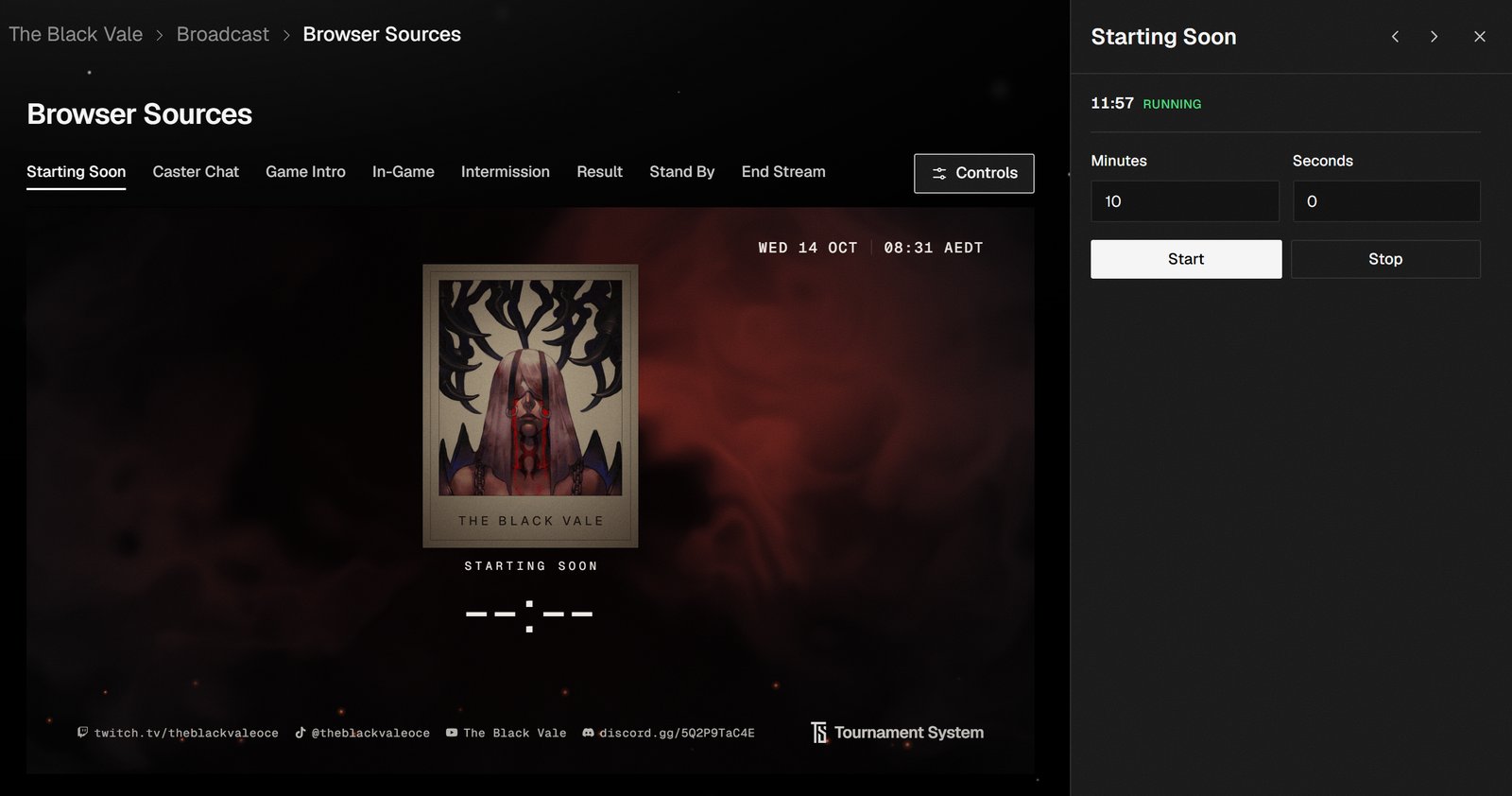 In the sidebar, select **Broadcast** → **Browser Sources**. Each scene has a tab along the top, with a preview of what OBS shows below.
Select **Controls** at the end of the tabs. The scene's controls open on the right, beside a narrower preview. Select a tab, or the arrows beside the scene name, to change scene.
In Live, select **Controls** beside the stream list. The same controls open beside the scorecard, starting on In-Game.
## Save your changes
Caster Chat, Game Intro, Intermission and Stand By have a **Save** button at the foot of the controls. Changes stay a draft, marked "Unsaved changes", until you select **Save**. Then "Saved." shows, and OBS updates within a few seconds.
Drafts stay while you switch scenes, so you can prepare several and save each when ready. If a save fails, your draft stays. Select **Save** again.
The countdown and the game clock have no **Save** button. Their buttons act straight away.
## Starting Soon: run the countdown
1. Enter the countdown length in **Minutes** and **Seconds**, up to 120 minutes.
2. Select **Start**. The countdown starts at once, and its status reads **Running**.
3. To stop it early, select **Stop**.
At zero, the status reads **Finished** and the title "Starting soon" replaces the countdown.
## Caster Chat: pick the casters
Choose **Caster 1** and **Caster 2**, then select **Save**. The lists offer everyone with a caster profile, and you can't pick anyone for both. Choose **No caster** to leave a slot empty.
Names, @usernames and pictures come from each caster's own profile, so set those up before the stream. The same picks supply the caster credit on In-Game. See [Set up your caster profile](/broadcast/caster-profile).
## Game Intro: choose the lineup
See [Set up the Game Intro](/broadcast/game-intro) to choose the map, killer and survivors for each game.
## In-Game: run the game clock
In-Game takes its teams and scores from the scorecard in Live. Its controls run the game clock, which counts up from zero on the scene.
* Select **Start** when the game starts. While the clock runs, the button reads **Pause**.
* Select **Reset** to set the clock back to zero. Moving to the next game in Live stops the clock and resets it for you.
* To add time, enter **Minutes** and **Seconds** under **Add time**, then select the button below, which shows the amount, such as **Add 01:30**. You can add up to 2 hours at once.
Until a scorecard is open in Live, the clock reads **No scorecard** and its buttons stay greyed out.
## Intermission: set the status
Enter the line shown under the matchup in **Status**, then select **Save**. It reads Intermission until you change it.
Intermission shows the open scorecard's match, with its set score. To show two other teams, turn on **Choose teams manually**, choose **Team A** and **Team B** from the verified teams, and select **Save**. The set score shows only if they're the open scorecard's teams.
## Stand By: set the message
Enter the **Message** the scene shows, then select **Save**.
## Result and End Stream
Result has no controls. It shows the winner the operator chose when finishing the scorecard in Live, with the final set score, and shows the result as pending until then.
End Stream shows a closing "Thanks for watching" sign-off and needs no setting.
## Next steps
Choose the map, killer and survivors for each game.
What each scene shows, and where it gets it from.
Score the match the scenes follow.
The order of work on the night.
## Related topics
- [Broadcast scenes](/broadcast/scenes.md)
- [Run a stream](/broadcast/broadcast-night.md)
- [Set up the Game Intro](/broadcast/game-intro.md)
- [Set up your caster profile](/broadcast/caster-profile.md)
- [Score a match in Live](/broadcast/score-a-match.md)
This documentation is built and hosted on [Mintlify](https://mintlify.com), a developer documentation platform.
In the sidebar, select **Broadcast** → **Browser Sources**. Each scene has a tab along the top, with a preview of what OBS shows below.
Select **Controls** at the end of the tabs. The scene's controls open on the right, beside a narrower preview. Select a tab, or the arrows beside the scene name, to change scene.
In Live, select **Controls** beside the stream list. The same controls open beside the scorecard, starting on In-Game.
## Save your changes
Caster Chat, Game Intro, Intermission and Stand By have a **Save** button at the foot of the controls. Changes stay a draft, marked "Unsaved changes", until you select **Save**. Then "Saved." shows, and OBS updates within a few seconds.
Drafts stay while you switch scenes, so you can prepare several and save each when ready. If a save fails, your draft stays. Select **Save** again.
The countdown and the game clock have no **Save** button. Their buttons act straight away.
## Starting Soon: run the countdown
1. Enter the countdown length in **Minutes** and **Seconds**, up to 120 minutes.
2. Select **Start**. The countdown starts at once, and its status reads **Running**.
3. To stop it early, select **Stop**.
At zero, the status reads **Finished** and the title "Starting soon" replaces the countdown.
## Caster Chat: pick the casters
Choose **Caster 1** and **Caster 2**, then select **Save**. The lists offer everyone with a caster profile, and you can't pick anyone for both. Choose **No caster** to leave a slot empty.
Names, @usernames and pictures come from each caster's own profile, so set those up before the stream. The same picks supply the caster credit on In-Game. See [Set up your caster profile](/broadcast/caster-profile).
## Game Intro: choose the lineup
See [Set up the Game Intro](/broadcast/game-intro) to choose the map, killer and survivors for each game.
## In-Game: run the game clock
In-Game takes its teams and scores from the scorecard in Live. Its controls run the game clock, which counts up from zero on the scene.
* Select **Start** when the game starts. While the clock runs, the button reads **Pause**.
* Select **Reset** to set the clock back to zero. Moving to the next game in Live stops the clock and resets it for you.
* To add time, enter **Minutes** and **Seconds** under **Add time**, then select the button below, which shows the amount, such as **Add 01:30**. You can add up to 2 hours at once.
Until a scorecard is open in Live, the clock reads **No scorecard** and its buttons stay greyed out.
## Intermission: set the status
Enter the line shown under the matchup in **Status**, then select **Save**. It reads Intermission until you change it.
Intermission shows the open scorecard's match, with its set score. To show two other teams, turn on **Choose teams manually**, choose **Team A** and **Team B** from the verified teams, and select **Save**. The set score shows only if they're the open scorecard's teams.
## Stand By: set the message
Enter the **Message** the scene shows, then select **Save**.
## Result and End Stream
Result has no controls. It shows the winner the operator chose when finishing the scorecard in Live, with the final set score, and shows the result as pending until then.
End Stream shows a closing "Thanks for watching" sign-off and needs no setting.
## Next steps
Choose the map, killer and survivors for each game.
What each scene shows, and where it gets it from.
Score the match the scenes follow.
The order of work on the night.
## Related topics
- [Broadcast scenes](/broadcast/scenes.md)
- [Run a stream](/broadcast/broadcast-night.md)
- [Set up the Game Intro](/broadcast/game-intro.md)
- [Set up your caster profile](/broadcast/caster-profile.md)
- [Score a match in Live](/broadcast/score-a-match.md)
This documentation is built and hosted on [Mintlify](https://mintlify.com), a developer documentation platform.